
New Options to Customise Your Video Slides
Make Your Slides Uniquely Yours
We’ve been listening to your feedback, and today we’re excited to announce a suite of powerful new customisation options in SlideVids. Whether you’re creating training videos, marketing content, or educational materials, these features give you the creative control to make every slide stand out.
An example of a video generated from SlideVids on Phishing
What’s New?
Let’s dive into each of the new customisation features now available in SlideVids.
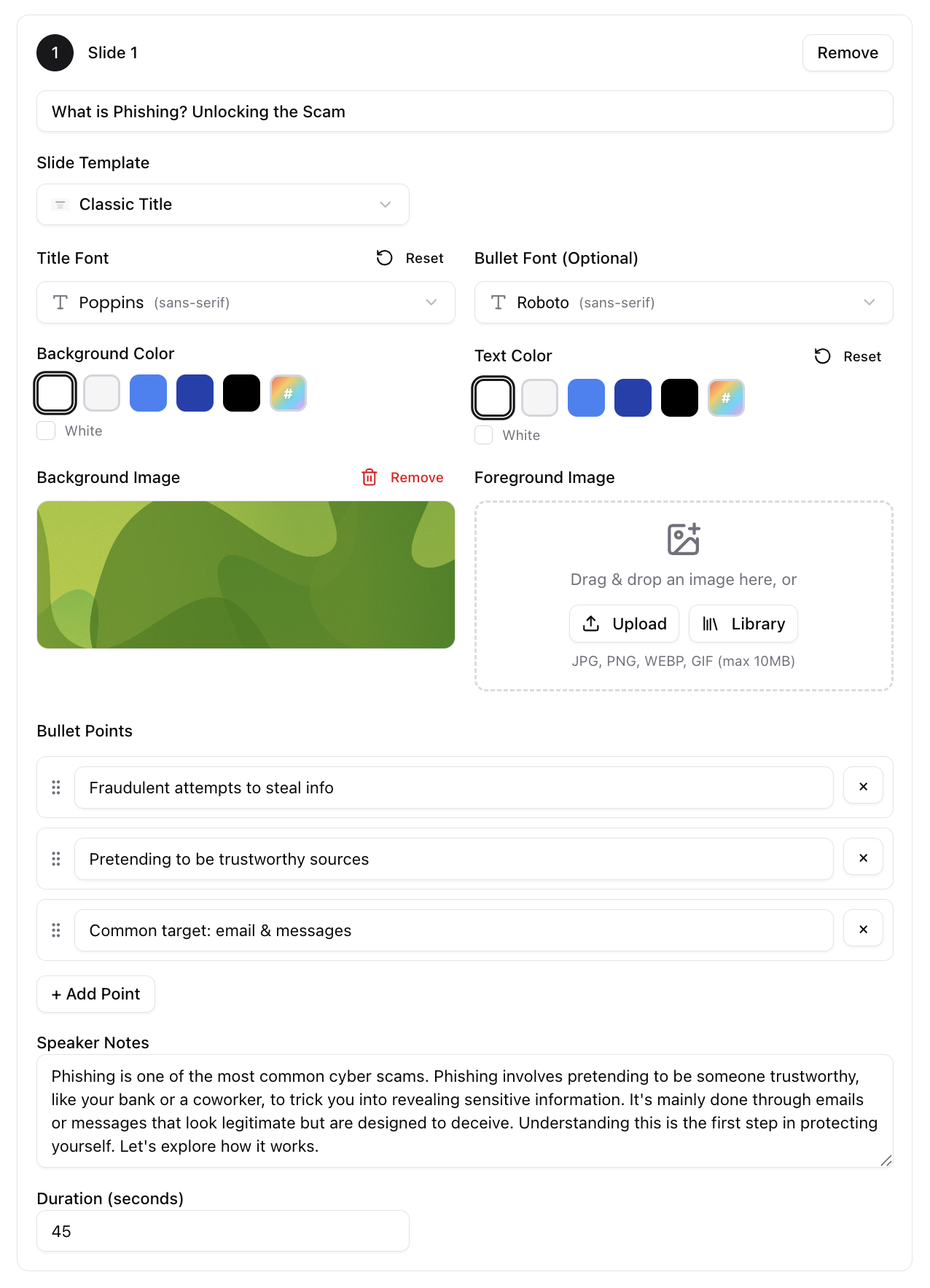
Background Images
Gone are the days of plain, solid-colour backgrounds. You can now upload custom background images to give your slides a distinctive, professional look. This is perfect for:
- Brand consistency - Use your company’s branded backgrounds across all slides
- Visual storytelling - Set the mood with relevant imagery
- Professional polish - Elevate your content with high-quality visuals
Simply upload any image and SlideVids will automatically fit it to your slide dimensions. We recommend using images that aren’t too busy, so your text remains readable.
Foreground Images
Need to illustrate a point? Add charts, diagrams, icons, or photos directly onto your slides with the new foreground image feature. This is ideal for:
- Data visualisation - Drop in charts and graphs to back up your points
- Product showcases - Feature product images alongside your talking points
- Illustrations - Add diagrams or infographics to explain complex concepts
- Screenshots - Show software interfaces or examples
Position your foreground images to complement your text, creating slides that inform and engage.
Custom Fonts
Typography matters. With 10 carefully selected font options, you can now match your slides to your brand or simply find the perfect style for your content. Mix and match fonts for:
- Titles - Choose a bold, attention-grabbing font for your headings
- Bullet points - Select a clean, readable font for your body text
Try pairing a serif font for titles with a sans-serif for bullet points to create visual hierarchy and keep your audience engaged. Or keep it consistent with the same font throughout for a cohesive look.
Custom Colours
No more being locked into preset colour schemes. You can now choose any colour for your:
- Title text - Make your headings pop with brand colours
- Bullet point text - Ensure readability while maintaining style
Pick colours that complement your background images and align with your brand guidelines. Pro tip: ensure sufficient contrast between your text and background for maximum readability.
Tips for Great-Looking Slides
To get the most out of these new features, keep these design principles in mind:
- Keep it simple - Don’t use all features at once. Sometimes a clean background with custom fonts is all you need.
- Maintain contrast - Ensure text is always readable against your background.
- Be consistent - Use the same fonts and colours across your entire presentation for a professional look.
- Test with different slides - What works for a title slide might not work for a content-heavy slide.
Get Started Today
These customisation options are available now for all SlideVids users. Head to your dashboard, open any presentation, and start experimenting with the new design controls.
We can’t wait to see what you create! Share your customised videos with us on social media and tag us to be featured.
Have questions about the new features? Contact our support team.